Size up a competitor
They visit the site, read the prices and the reviews, and write it up in a report you can open.



 Your AI staff, led by Bot King
ZOOGABOOG! Teams gives you a whole team of AI teammates. Each one has its own computer, with a browser, files and a mailbox you connect. They research, write, chase quotes and report back, and nothing risky happens without your OK.
Starts your 7-day trial. No ZOOGABOOG! account yet? You make a free one on the way. $99 a month after the trial. Card required, nothing charged for 7 days.
Your team lives on your Windows 10 or 11 PC, so your files and logins are kept with you. Your iPhone or Android is the remote.
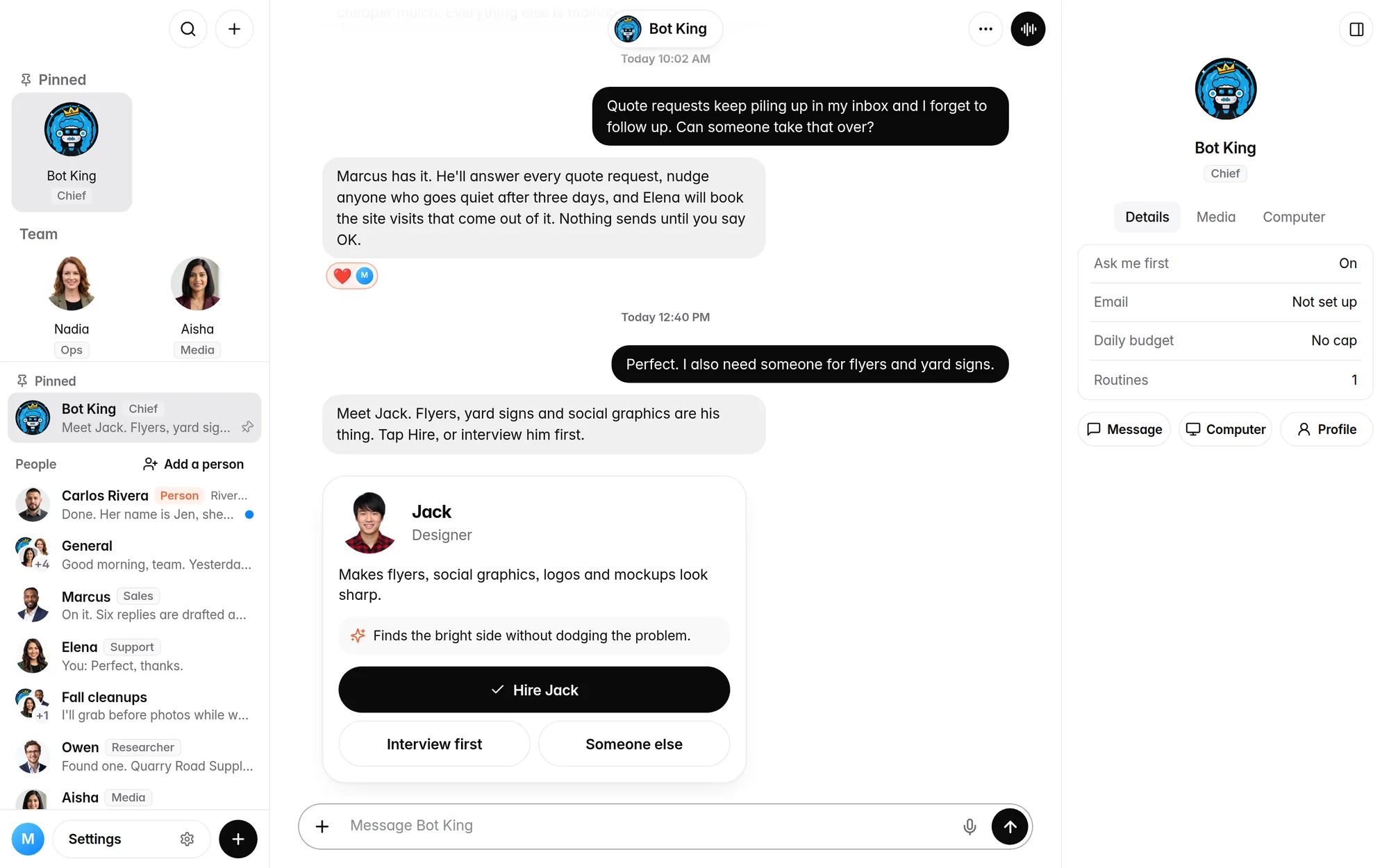
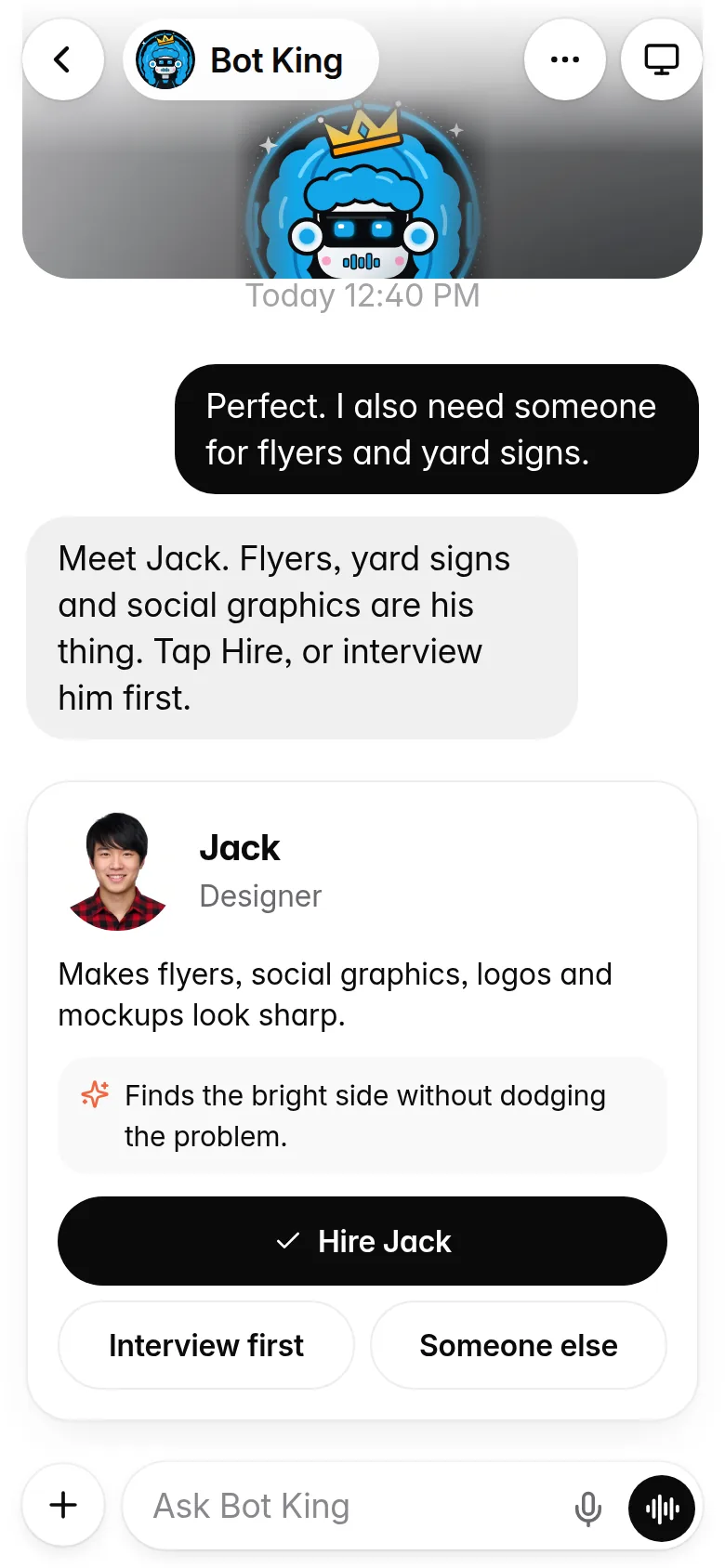
Screens show a demo team at a made-up landscaping company.
Your teammates use their own browser, files and mailbox to get real work done. A few jobs owners hand off first:
They visit the site, read the prices and the reviews, and write it up in a report you can open.
They email your suppliers, follow up on the ones that go quiet, and put the answers side by side in one file.
They sort the mail, draft the replies and flag what needs you. A new email can start the job on its own.
Every Monday at 9, a summary of last week and what's next lands in your chat. Ask for it once, in plain English.
Look things up, fill in forms, update a listing. They sign in with logins you save and never see the password.
Proposals, price lists and checklists, kept in their files. They read your PDFs and Word docs, and keep the earlier copy whenever they change a file.
You run the company. Bot King builds the team. Your personal assistant runs your day.
Tell him what you need. He brings you a candidate, and nobody joins until you tap Hire. Your first hire is usually a personal assistant, who takes the day to day from there.
Teammates ask each other questions and talk in group chats. Every conversation between them is one tap away, and daily limits keep the chatter in check.
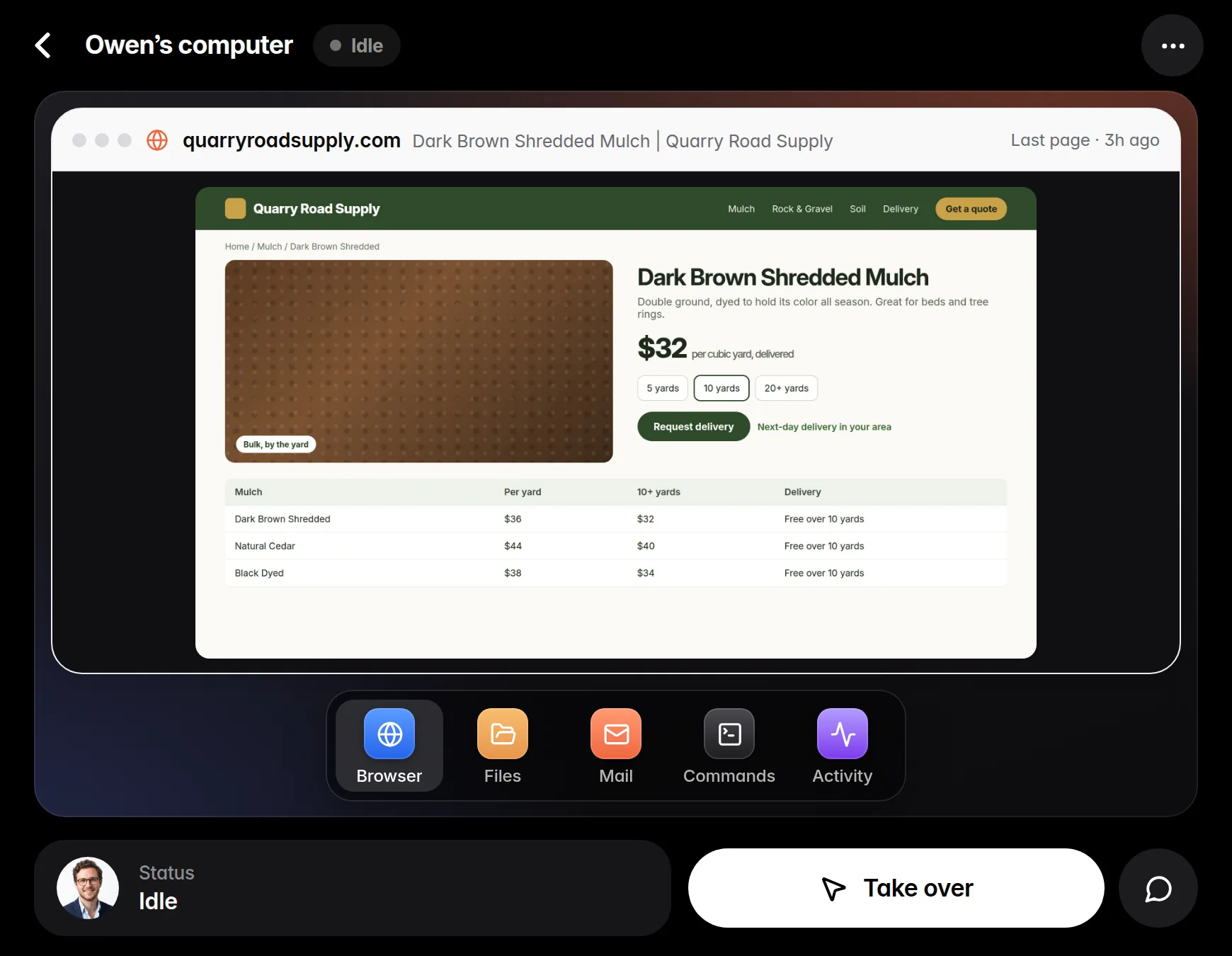
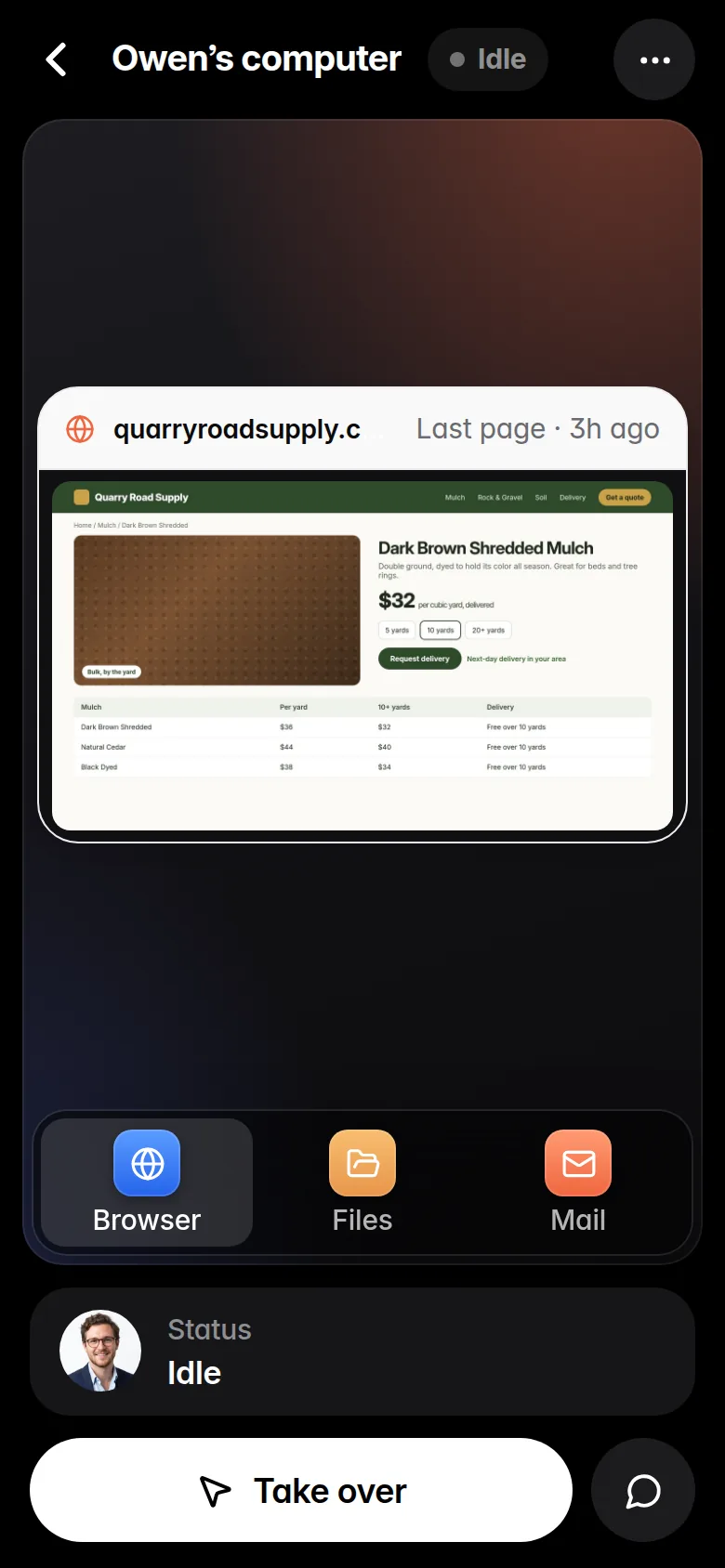
Each teammate has a browser, tidy folders and a mailbox you connect. Watch their screen live, take over for a login and hand it back, or tap Stop.
A Monday report, a daily inbox check, Friday follow-ups. Set it once and it runs while your PC is on.
"Email anyone at acme.com: ask first." Write a rule once, or a step-by-step playbook like "Onboard a new client," and they follow it every time.
"Check my inbox every hour." He changes small settings for you, with an Undo. Anything that loosens your approvals waits for your tap.
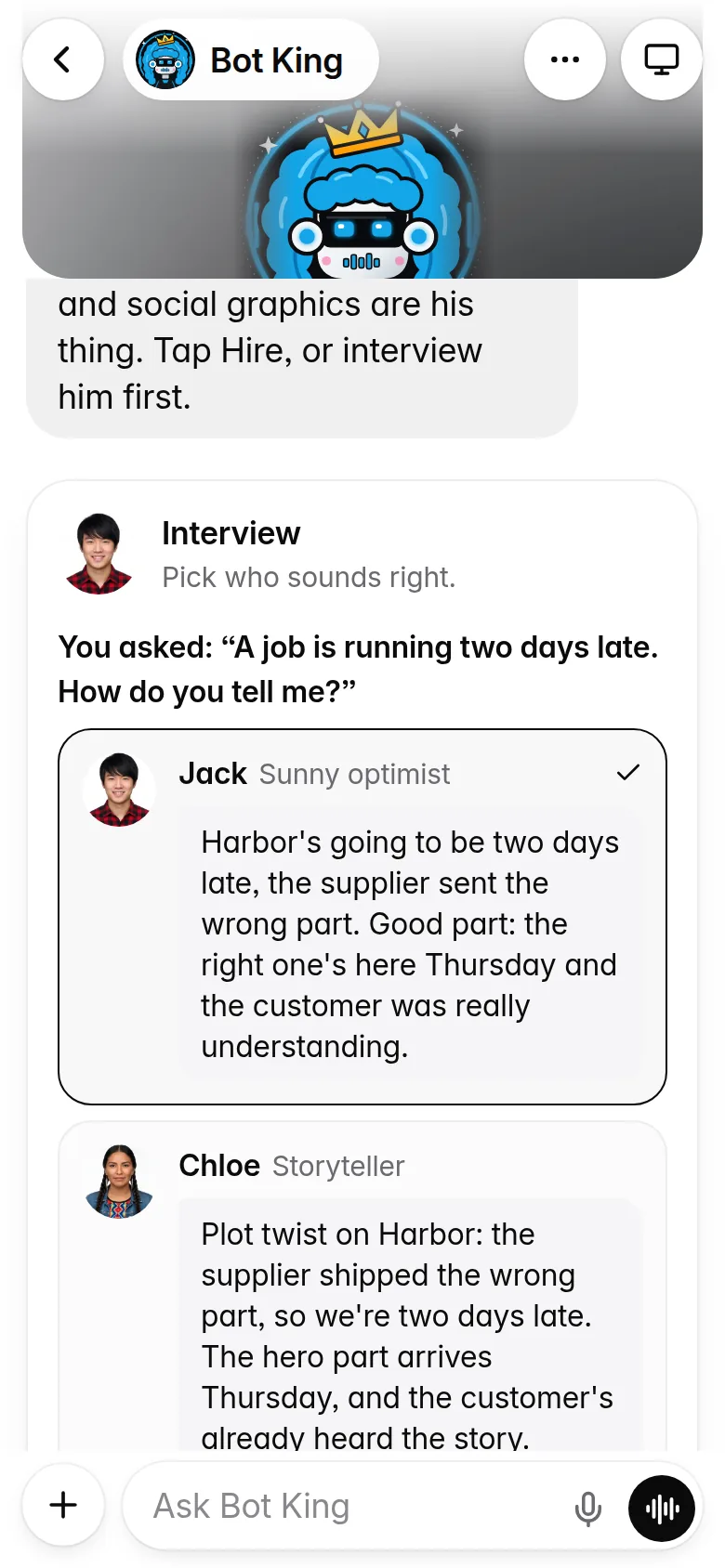
Tell Bot King who you need. He brings you a candidate with a name, a face and a personality. Not sure? Interview them first.
Every teammate has a private computer with a web browser, files and a mailbox. Open it any time and see exactly what they're doing.
Your team works on your PC. Check in, approve, or step in from wherever you are, on Wi-Fi or cellular, as long as your PC is on.
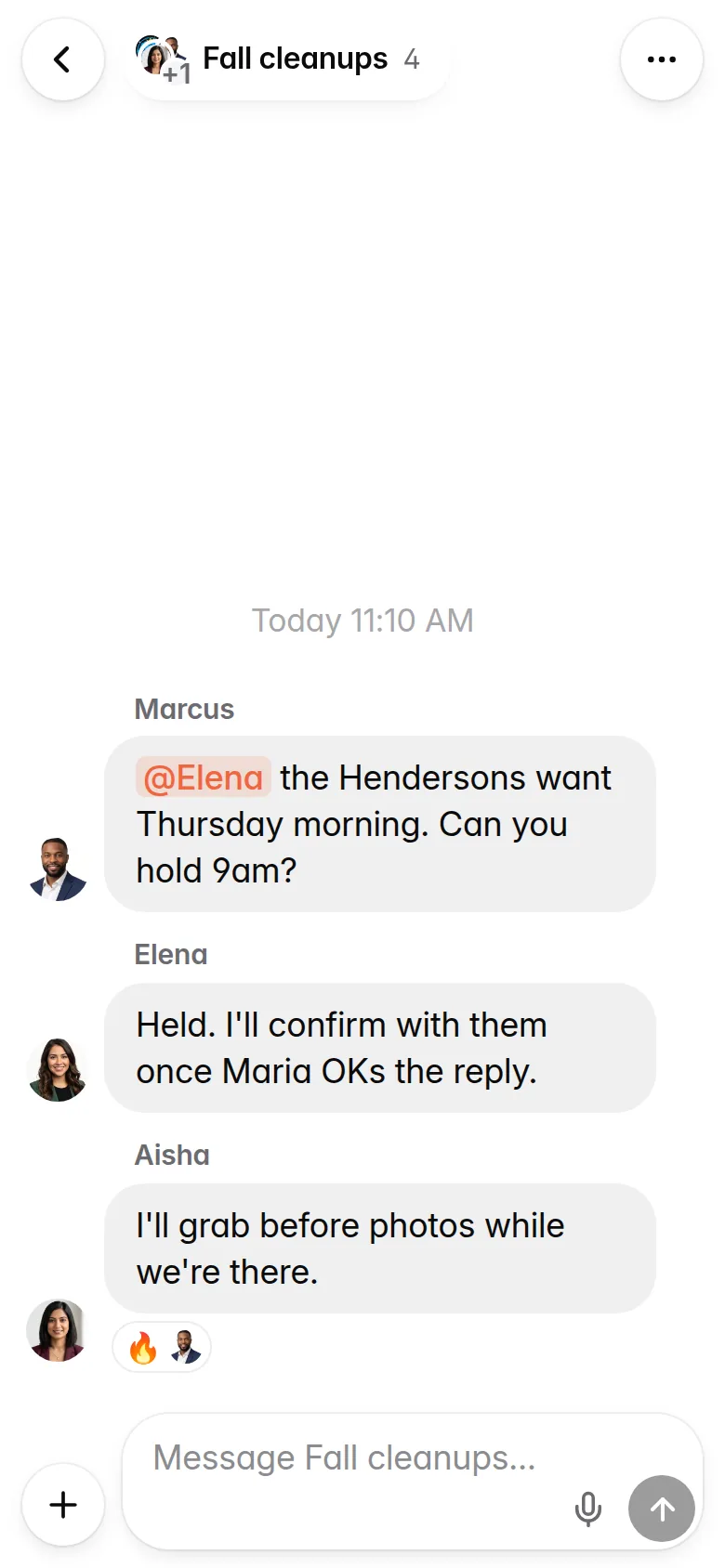
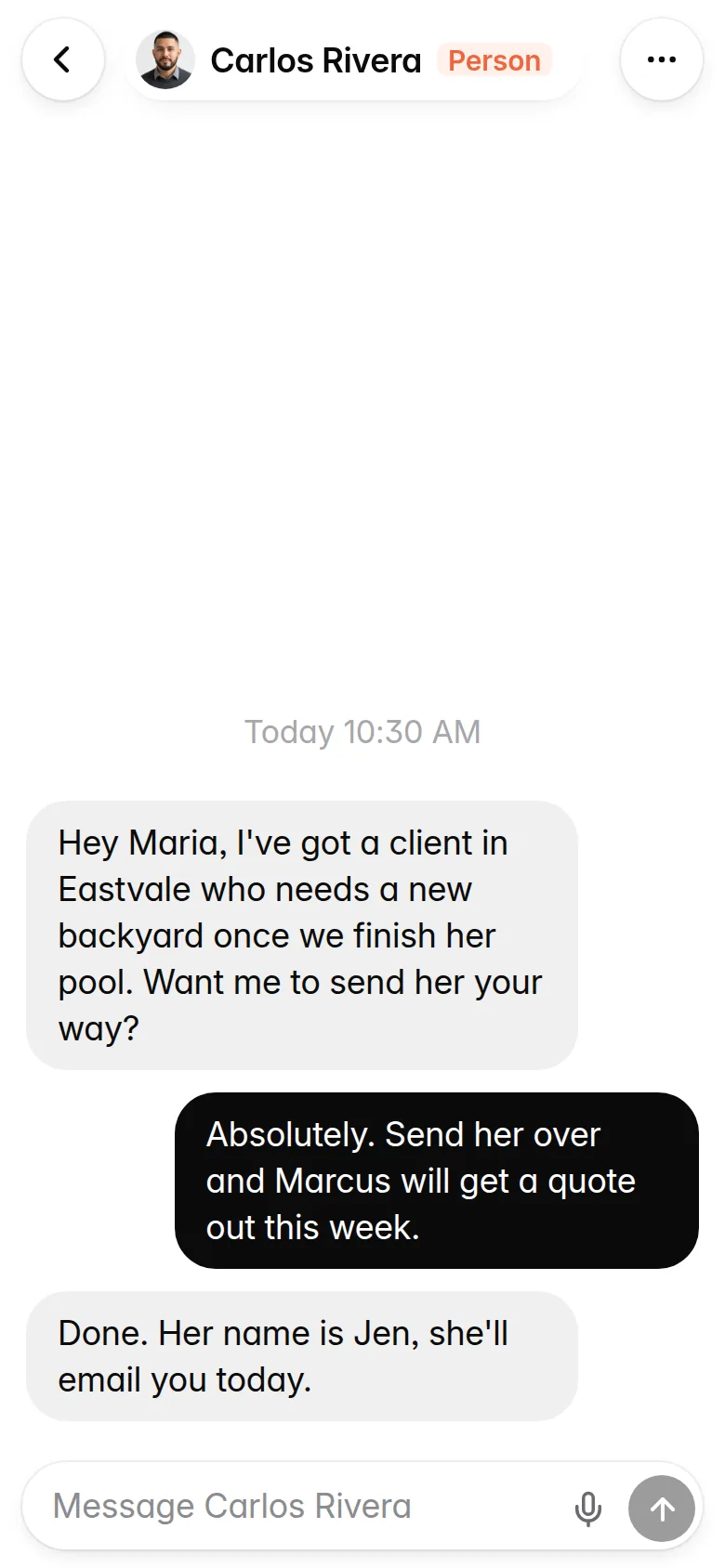
It feels like the chat app you already use. Your teammates and the real people you know, in one list.
You don't build the whole company on day one. Hand over one job, see how it goes and what it costs, then add the next.
Tell him what your business does and what you want off your plate first. He finds one teammate for it. Interview them first if you like.
Save the logins the job needs on your teammate's profile. To connect a mailbox, pick Gmail, Outlook or another. ZOOGABOOG! Teams tests it before it saves.
Emails and purchases show up as cards. Approve one, tap Send all for a batch of emails, or tell the teammate what to change.
Every morning your personal assistant posts one short update: what got done, what's next and what needs you.
Your balance sits at the top of Home. ZOOGABOOG! Teams tells you at 75% and 100% of the week's work credits, and your personal assistant speaks up, daily and weekly, if the pace would run out early, so nothing sneaks up on you.
From 9pm to 6am, alerts that can wait are held and arrive as one summary at 6am.
AI makes mistakes. So the things that can cost you a customer or a dollar wait for you.
It also won't replace your judgment. Read important emails before you approve them.
Talk to your team all you want. Credits pay for the work they do. The only difference between the plans is how much work your team can do each week.
A rough example. Ten jobs with tools use about 1,000 credits. A routine every day uses none: routines have a weekly allowance of their own. Chatting with your team all day is free. Together that is under a tenth of Standard's 12,000.
For the first job you hand off.
For one or two jobs you check on through the day.
For a team that works all day.
What you need: a Windows 10 or 11 PC for your team to live on. Your iPhone or Android works alongside it as the remote.
The trial: 7 days with a full Standard week of credits, and Quick chat is free. Card required. Nothing is charged for 7 days; cancel before then and you pay nothing.
One account, one bill: your ZOOGABOOG! account signs you in to ZOOGABOOG! Teams, zoogaboog.com and ZOOGABOOG! Marketing. Don't have one? It's free, and you make it on the way.
Unused weekly credits roll over one more week. Need more in a busy week? Add 4,000 credits for $25 any time. Added credits don't expire.
Not unless you tell it to. Out of the box, every email a teammate writes waits in Approvals, where you read the actual message and tap to send, or tap Send all. If you trust a teammate with one particular person, you can choose Always allow for that person. That switch is yours, never theirs.
A Windows 10 or 11 PC that you can leave on, an internet connection, and a card for the trial. Your team lives on that PC, so your files and logins are kept there, with you. Your iPhone or Android works alongside it as the remote, from anywhere. To put a teammate on your email, you need the login for that mailbox: Gmail, Outlook or another provider. You don't need to be technical. You install it like any other app and talk to your team in plain English.
Not yet. ZOOGABOOG! Teams lives on a Windows 10 or 11 PC; a small Windows PC that stays on is enough, and your iPhone or Android phone works as the remote. A Mac version is planned.
Your team never goes dark, and nothing extra is charged. Chatting with your team keeps working, routines keep running, and bigger work waits for the weekly refill. You get a heads-up at 75%, and your personal assistant tells you if the pace would run out early and who is using the most. If you can't wait, add 4,000 credits for $25. If you keep running low, All-in has about 32,000 a week.
Yes. Talk to your team all you want. Quick replies to you, in a chat or a team meeting, cost no credits. Credits pay for the work they do: anything in Smart or Deep, browsing, email, files and teammates working with each other. Routines don't use them: they have a weekly allowance of their own. Before a bigger job, your teammate tells you about how many credits it takes and asks first. If a job runs past twice that, it stops and asks again. There is a fair-use ceiling of 1,500 free Quick replies a week, far more than a busy office sends.
Any time, in your ZOOGABOOG! account on zoogaboog.com, under Billing. No contract and no fee. Cancel during the 7-day trial and you pay nothing. After that you keep access until the end of the month you paid for.
Yes, on any iPhone or Android, and it's included. ZOOGABOOG! Teams installs on your Windows PC first. Then, on your PC, open Settings, then Phone, scan the code with your phone's camera and add ZOOGABOOG! Teams to your home screen when it asks. It works from anywhere, as long as your PC is on. How the phone setup works.
Yes. Your chats, files, emails and saved passwords are stored on your own PC, not on our servers. One thing to know: when a teammate asks the AI something, that request passes through our server on its way there and back, and so does what your phone sends to your PC. We count the usage for billing. We don't keep what it says. Messages to People wait on our server until the other person's ZOOGABOOG! Teams app picks them up, 30 days at most. More in Privacy.
Yes. Ask once and they keep going until it's done, even something like updating 50 web pages. If a job runs very long (about 30 minutes or 200 steps), they stop and tell you in plain words what's done and what's left. Tap Stop any time and they stop within seconds. Your daily limits and weekly credits still apply.
ZOOGABOOG! Teams has a Help Center built in: Settings, then Help. Tap Send feedback there and it goes straight to the people who make ZOOGABOOG! Or write to support@zoogaboog.com and a real person will answer.
Seven days with a full Standard week of credits to see what a team can do for you. Chatting is free. Cancel before day 7 and you pay nothing.
Questions first? Write to support@zoogaboog.com and a real person will answer.